charter-app
Charter App Documentation
Charter Workflow
To use a Charter, you need to follow these steps:
- Capture an image or multiply images of the color chart with disabled camera effects. Capture in RAW is recommended.
RGB Workflow
- Process RAW image to a linear gamma image and native camera color space. If your processing workflow allows you to work with mosaiced (Bayer-raw) monochrome images - export raw images without any processing to any lossless format (PGM, TIFF, EXR, etc).
If your camera does not support RAW, you can use standard sRGB images. In this case, you need to use the Import Gamma settings to decode the image properly. If your camera supports Log encoding, you can use Log Decoding settings to decode the image properly.
- Change Import Gamma/sRGB/Log settings to decode the image properly.
If you are using a raw Bayer image, and you know the camera sensor ADC bit depth and black level, you can use Import Exposure/Black Lv settings to decode the image properly.
MV camera sensors that have 12bit ADC, capture raw image can have values in the range 0-4095. To map this raw range to 0% - 100% of a 16bit, you need to use 4-bit shift or +4EV Exposure in the Charter app. 10-bit will require 6-bit shift or +6EV Exposure. For DSLR or mirrorless RAW data (not the camera raw) that can have 14-bit, you need to use 2-bit shift or +2EV Exposure.
Set correct Bayer pattern in Bayer Pattern settings.
If you are using a raw RGB bayer image, you can use Demosaic RGB settings to convert the raw bayer image to monochrome in loading time.
- Import the image into Charter.
You can adjust Import: Gamma/Exposure/Black Lv settings after importing the image.
Warning! Changing Gamma/sRGB/Log mode after importing the image will require re-importing the image.
Camera RAW Workflow
TODO: Add Camera RAW, DNG, Binary/RAW workflow
- Load the CGATK chart file.
You can use ColorCheker or ColorChecker Digital SG CGATK files from the program CGATK folder or download averaged crowd-sourced CGATK files from BabelColor
Warning! Spectral measurements or non D50 white are not supported yet. Only LAB or XYZ under D50 white measurements are supported.
Warning! Some CGATK files can have incorrect combination of LGOROWLENGTH and NUMBER_OF_SETS. In that case Charter will try to correct it automatically. Result is not garateed to be correct. If you have a problem with imported chart, please contact it vendor or try to correct it manually in text editor.
- Place the chart on the image.
By default, Charter opens a chart and places a widget in the center of the image with some margins.
You can also use Rotate H / V / CW / CCW buttons to rotate the chart.
Use corner patches to place the chart on the image using perspective transformation. To finetune independent patches, drag the patch to the desired position.
Using Move Radius settings, you can change the patches elastic movement radius.
You can always reset the chart to the initial state by clicking the [x] button in the chart control.
-
Estimate White Balance If your chart has achromatic patches, you can estimate white balance by clicking the Estimate WB button. This step is optional, Charter will try to estimate white balance automatically when you click the Estimate CCM button.
On success, Charter will update the image preview and results window with an estimated white balance.
If used Highlights Scale settings (enabled by default), Charter will normalize white balance scales to the smallest intensity equal 1.0. The image preview will be updated with reconstructed highlights. Otherwise, the image preview will be updated with a normalized white balance. Highlights, in that case, can have unexpected color tints.
Highlights reconstruction:
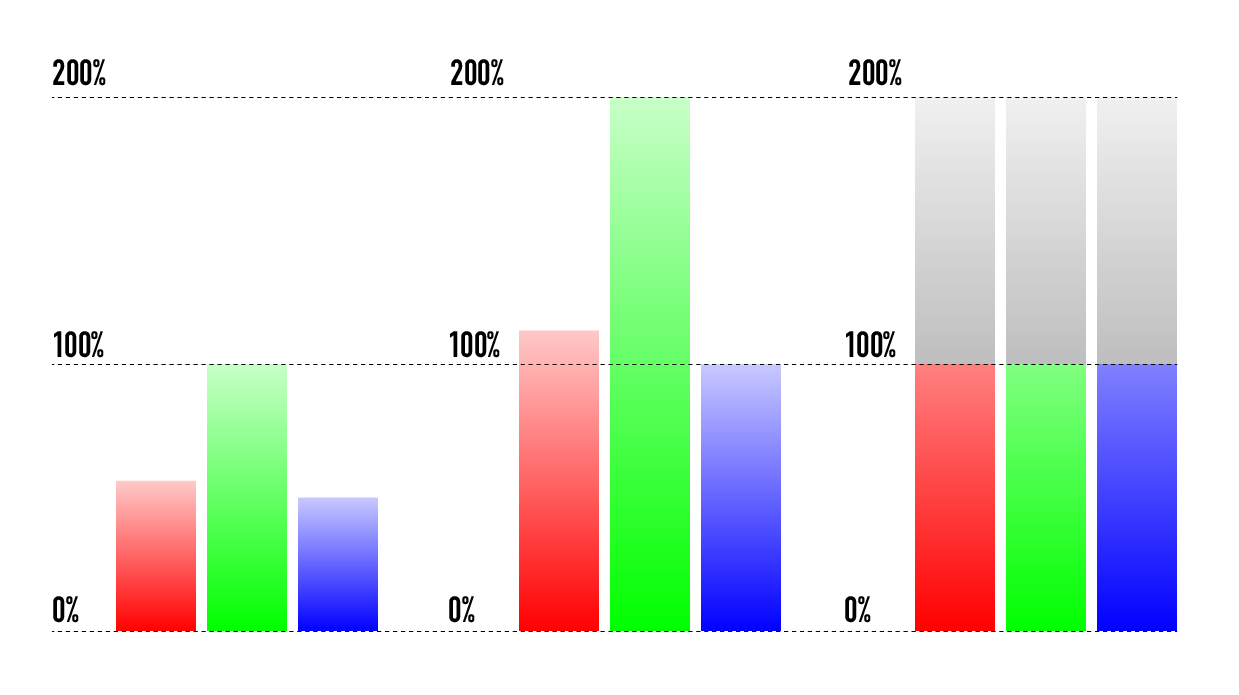 ` source -> scaled -> reconstructed highlights`
Some optimization steps outputs can be visible in the console.
Warning! If your chart does not have achromatic patches, result will be incorrect or app can crash.
TODO: Check how code handle the case when WB can’t be estimated and optimisation code returns the error.
-
Color Correction Matrix Click the Estimate CCM button to estimate the Color Correction Matrix.
Warning! If your chart does not have achromatic patches, result will be incorrect or app can crash.
- Check results in Results window.